Indexing in Titan Requires a Chrome Browser extension called "Perceptive Content Learn Mode"
Step-by-Step Installation
Add to Chrome: Click the blue Add to Chrome button located on the right side of the page.
Confirm Installation: A pop-up will appear asking for permission. Click Add extension to finalize the process.
Verify the Extension: Once installed, you should see a notification that the extension has been added. You can manage extensions by clicking the three vertical dots in the top right of the browser. Choose Extension and then manage Extensions.
Connect your scanner to the chrome browser
Requires installation of Perceptive Experience Web Scan
Currently only supports Windows PCs.
Contact the helpdesk
SCANING CAPTURE
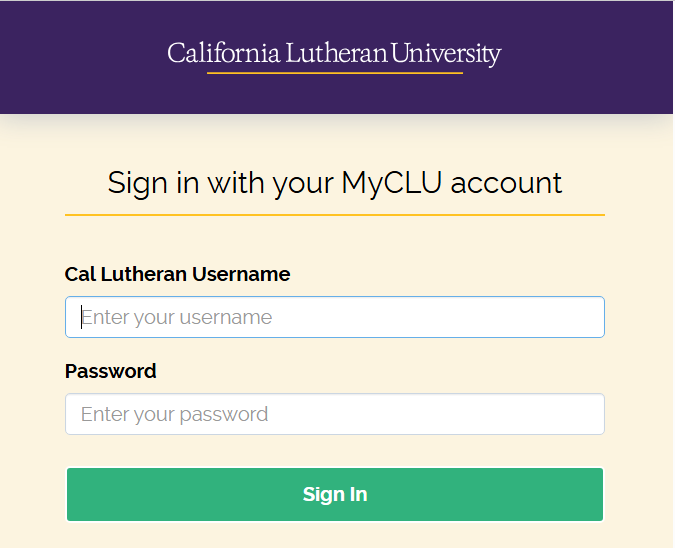
Login will prompt for the Cal
Lutheran single login
Open Colleague to the record to be linked
Make sure the Colleague Tab is the top-most tab. You can click on the tab and drag the tab down to open it in a separate window.
MAIN MENU
Click Capture
Drop down the list of capture profiles to select the type of document to be imported
If you have the Colleague screen open to the record you are referencing the document properties will populate on the right of the screen.
To add a document you may browse to a document and import it.
You can also use an attached scanner once the connector is installed.
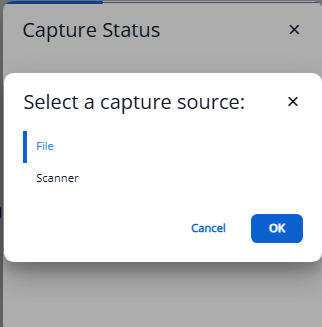
Once you have selected or scanned a document click the Save button.
The document will be added to
the system.
Click on the hamburger or the Hyland name to return to the main menu.
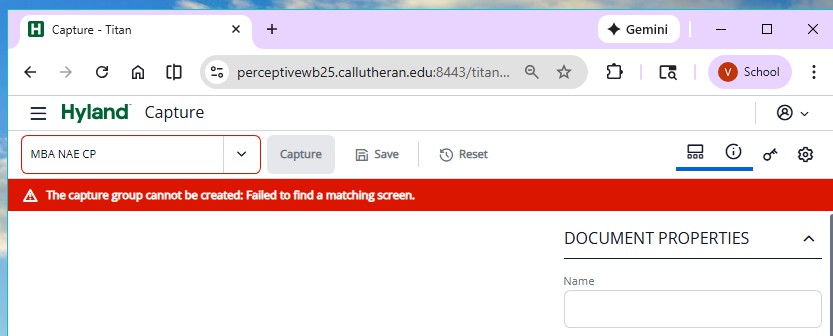
If the Colleague window is not open or not the top tab you will see the following error.
Drag the Colleague window to a new tab and then click on the key in the tool bar to the top right to refresh the
Document Properties